To Our Dear Users
Thank you for choosing Creality. For your convenience, please read through this User Manual before you start and follow the instructions provided carefully.
Creality is always ready to provide you with high-quality services. If you encounter any issues or have any questions when using our products, please use the contact information at the end of this manual to contact us.
To further improve your user experience, you can find more about our devices via the following methods:
User manual: You can find instructions and videos in the USB flash disk provided with the printer.
You can also visit our official website (https://www.creality.com) to find information regarding software, hardware, contact information, device instructions, device warranty information, and more.
Firmware Upgrade
- You can upgrade the firmware directly through the device screen;
- You can upgrade the firmware via the Creality Cloud OTA;
- Please visit the official website https://www.creality.com, click on “Support → Download Center ” , select the corresponding model to download the required firmware, (Or click on“Creality Cloud → Downloads → Firmware”) , after installation is complete,
Product Operation and After-Sales Service Information
- You can log in to the Creality Official Wiki (https://wiki.creality.com) to explore more detailed after-sales service tutorials.
- Or contact our after-sales service center at +86 755 3396 5666, or send e-mail to cs@creality.com
NOTES
- Do not use the printer in any way other than described herein in order to avoid personal injury or property damage;
- Do not place the printer near any heat source or flammable or explosive objects. We suggest placing it in a well-ventilated, cool and dustless environment;
- Do not expose the printer to a violent vibration or any other unstable environment, as this may cause poor print quality;
- Please use recommended filaments to avoid clogging of the extrusion head and causing damage to the machine;
- Do not use the power cable of other products during installation. Always use a grounded three-prong power outlet, which accompanies the printer;
- Do not touch the nozzle and the heated bed during operation to avoid burns or personal injury;
- Do not wear gloves or wraps while operating the machine to prevent entrapment of movable parts that could cause crushing and cutting injuries to bodily parts;
- Use the provided tools to clean the filament from the extruder in time taking advantage of the residual temperature after printing. Do not touch the extruder directly when cleaning, otherwise it may cause burns;
- Clean the printer frequently. Clean the printer body with a dry cloth regularly after powering off the printer, wipe away dust, bonded print filament and foreign objects on the guide rails;
- Children under 10 years old should not use the printer without supervision, otherwise it may cause personal injury;
- Users should comply with the laws and regulations of the corresponding countries and regions where the equipment is located (used), abide by professional ethics, pay attention to safety obligations, and strictly prohibit the use of our products or equipment for any illegal purposes; Creality will not be responsible for any violators' legal liability under any circumstance;
- Tip: Do not plug in or unplug wires on a charged basis.
Unbox Video
1. Printer Information
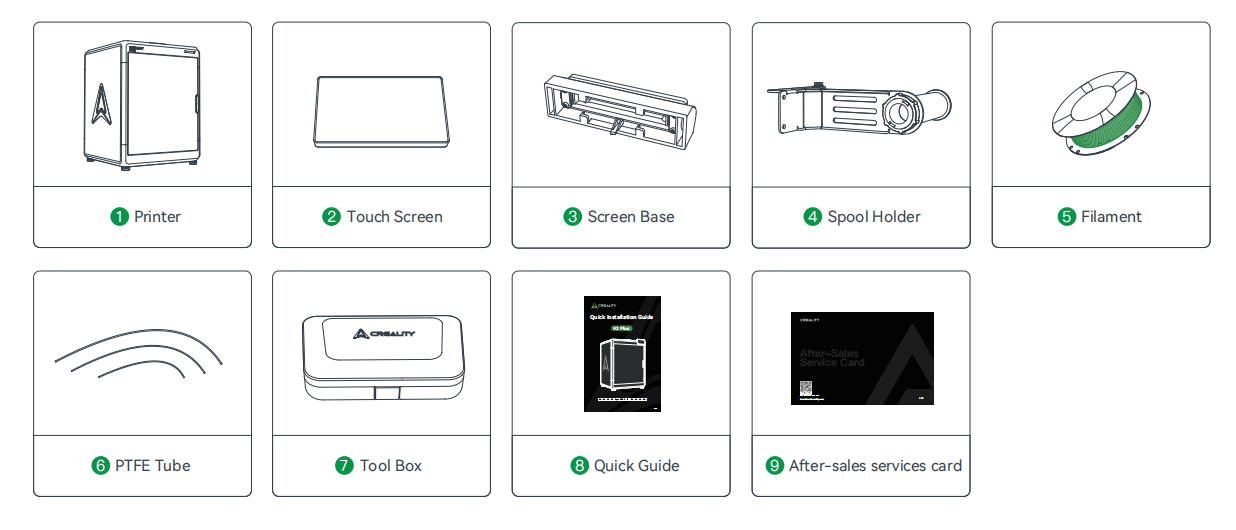
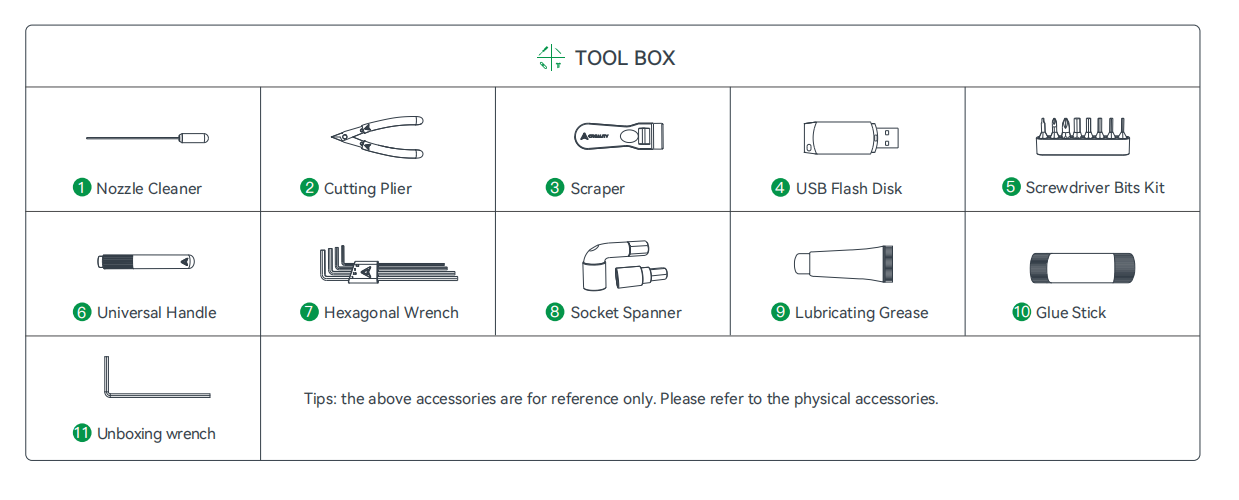
1.1 Packing List
1.2 About the Printer
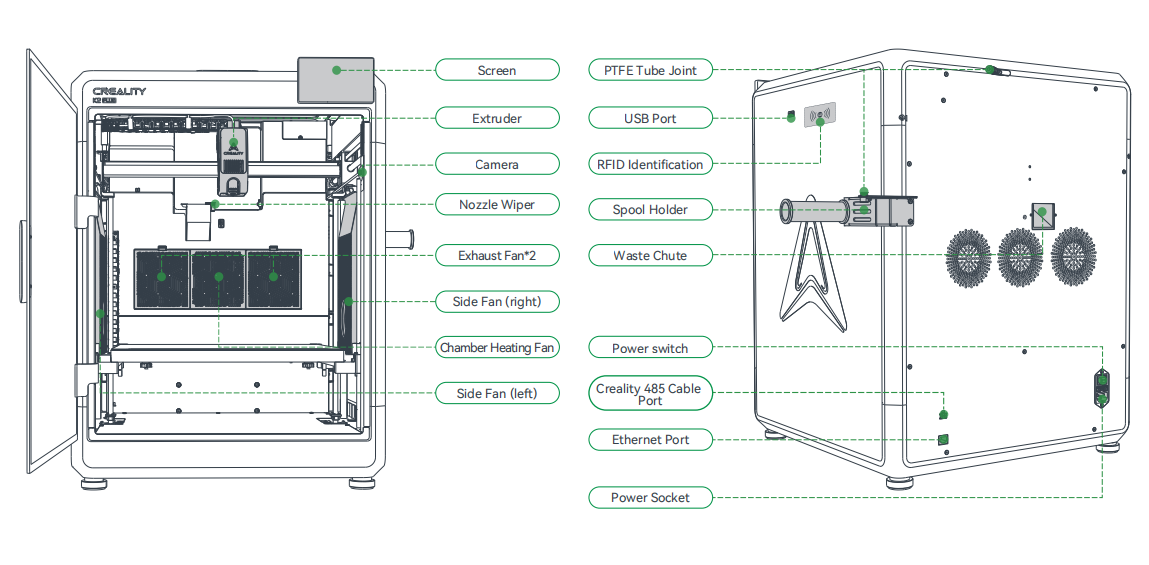
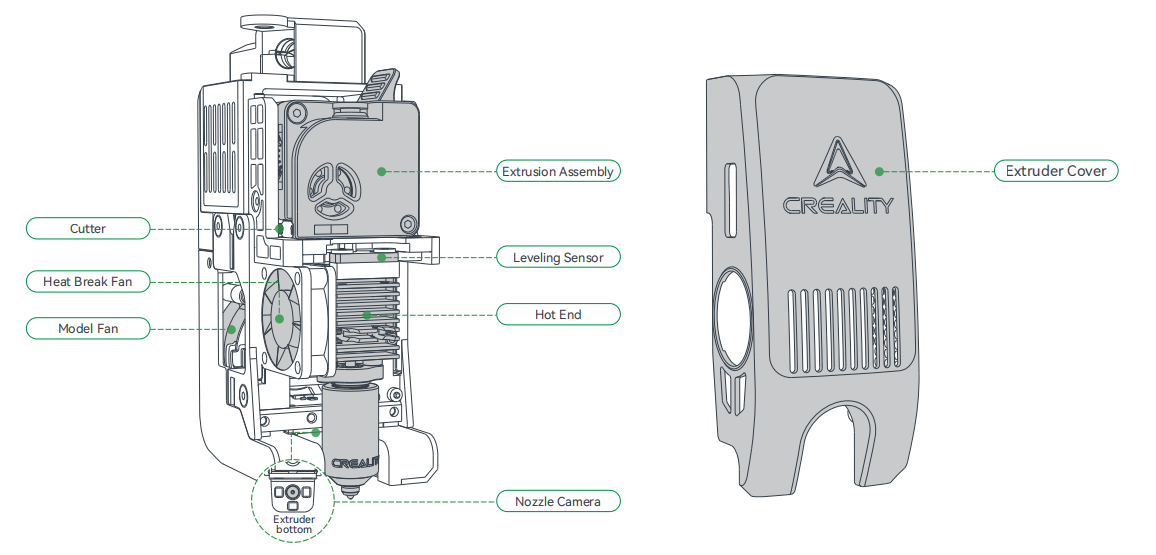
1.3 Equipment Specifications
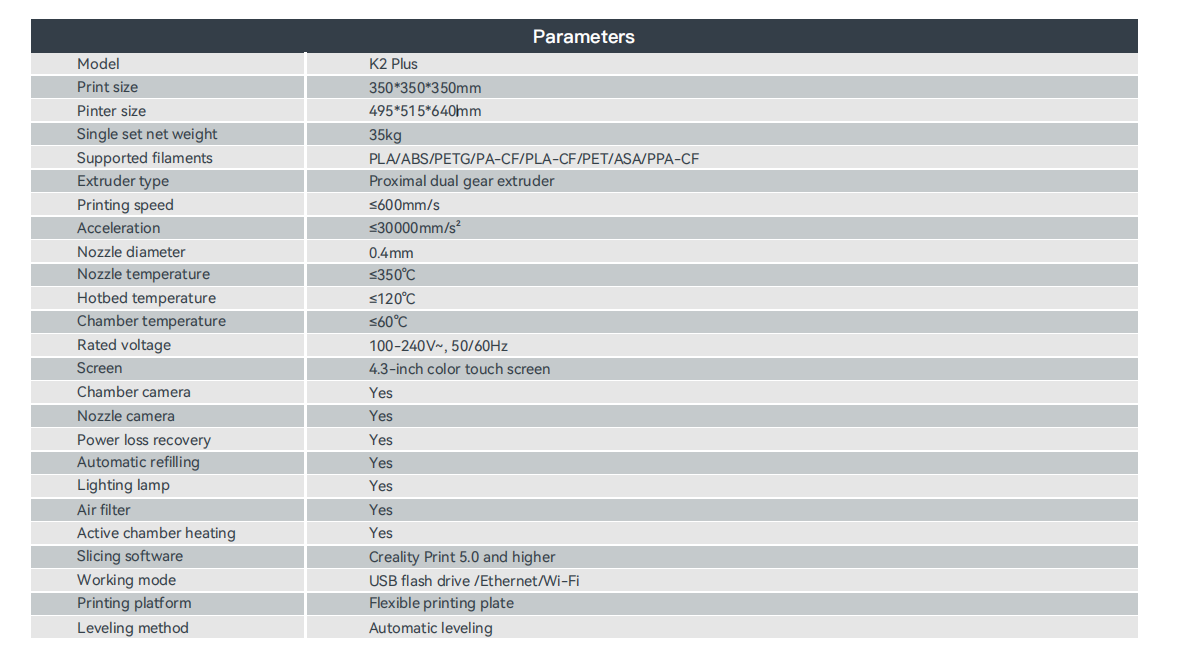
1.4 Equipment Size
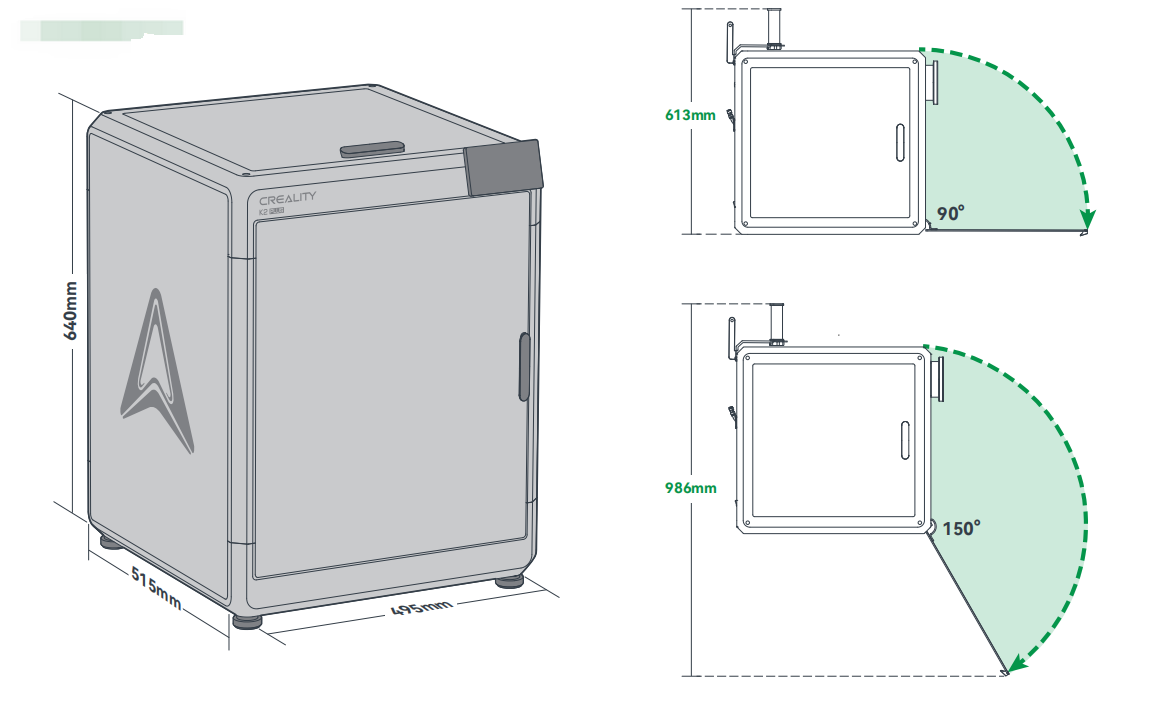
2. Unboxing
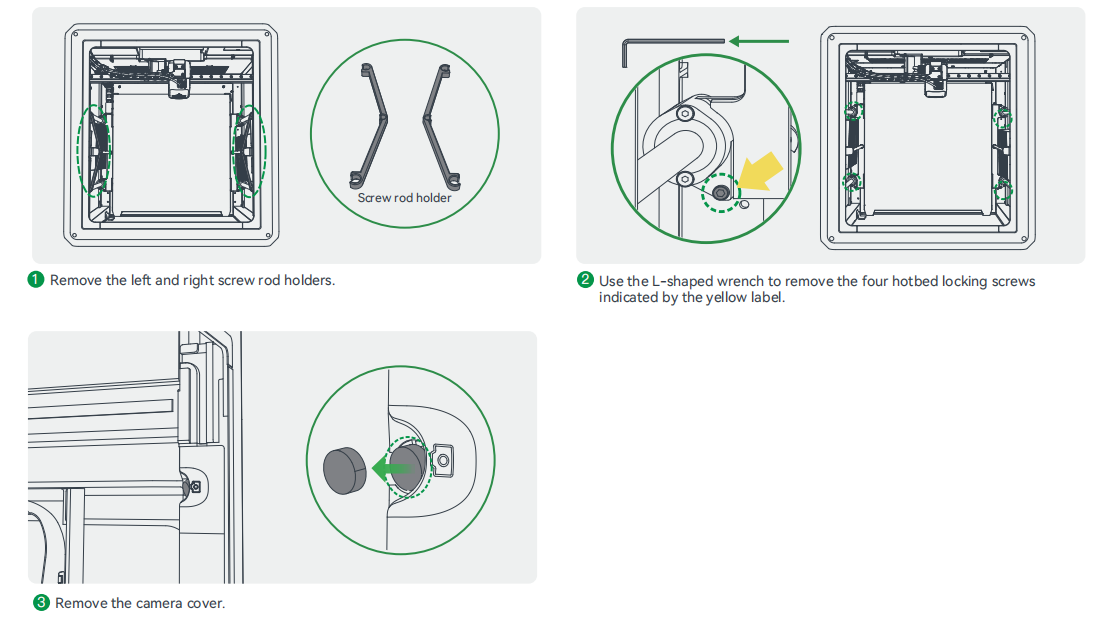
2.1 Remove Screw Rod Holder, Hotbed Locking Screws, Camera Cover
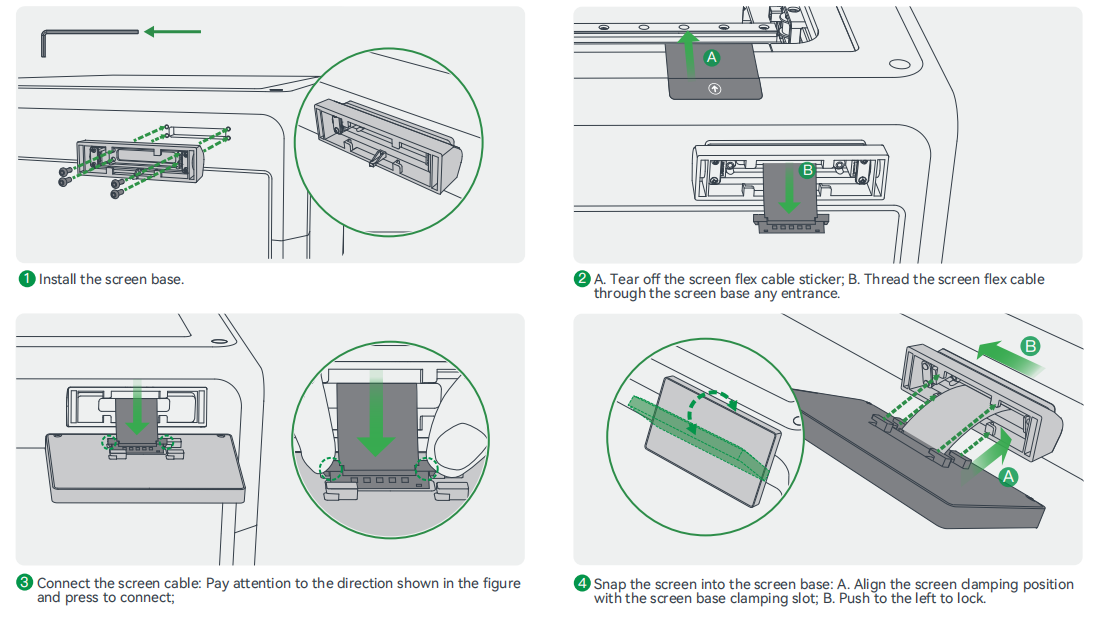
2.2 Install Accessories
2.2.1 Install Printer Screen
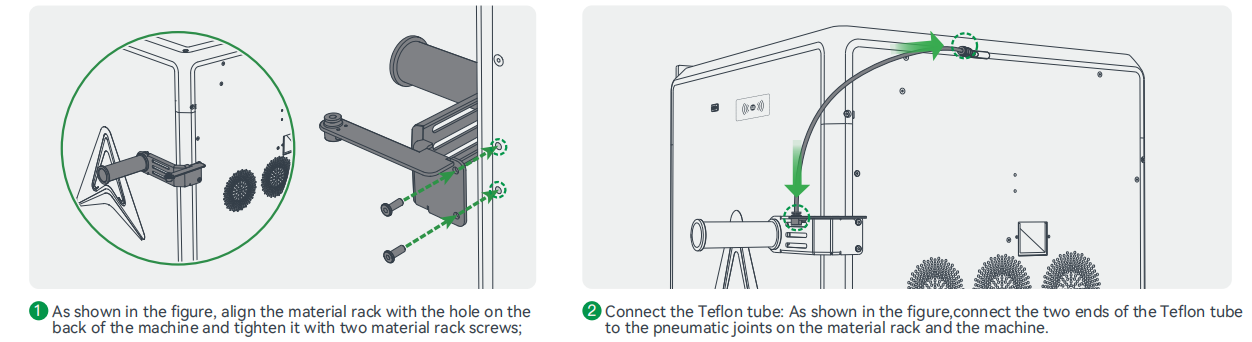
2.2.2 Install Spool Holder and PTFE Tube
2.3 Connecting CFS
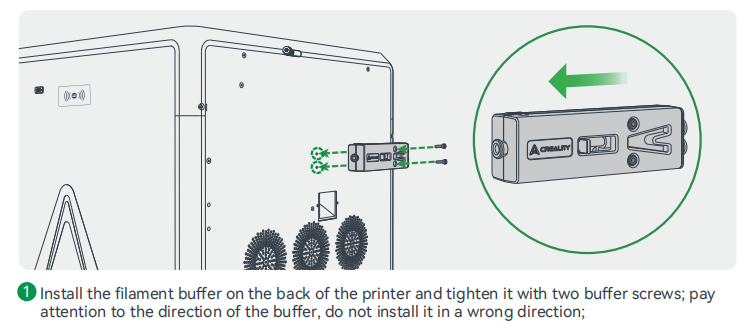
2.3.1 Install the filament buffer
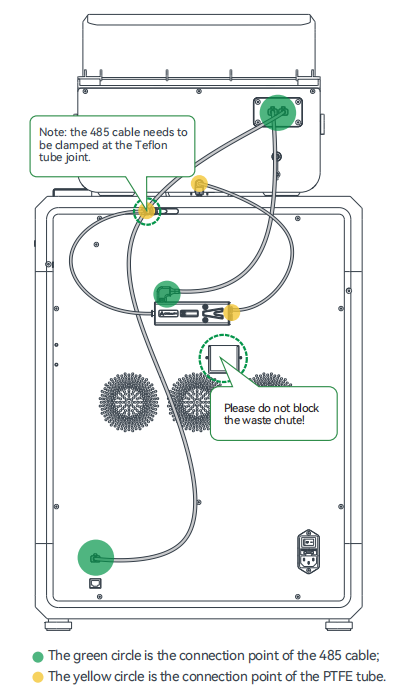
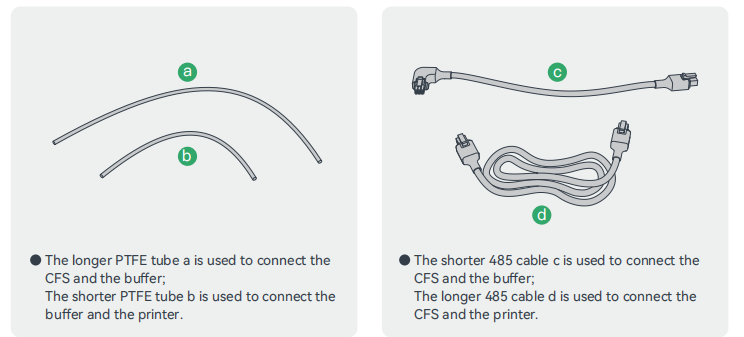
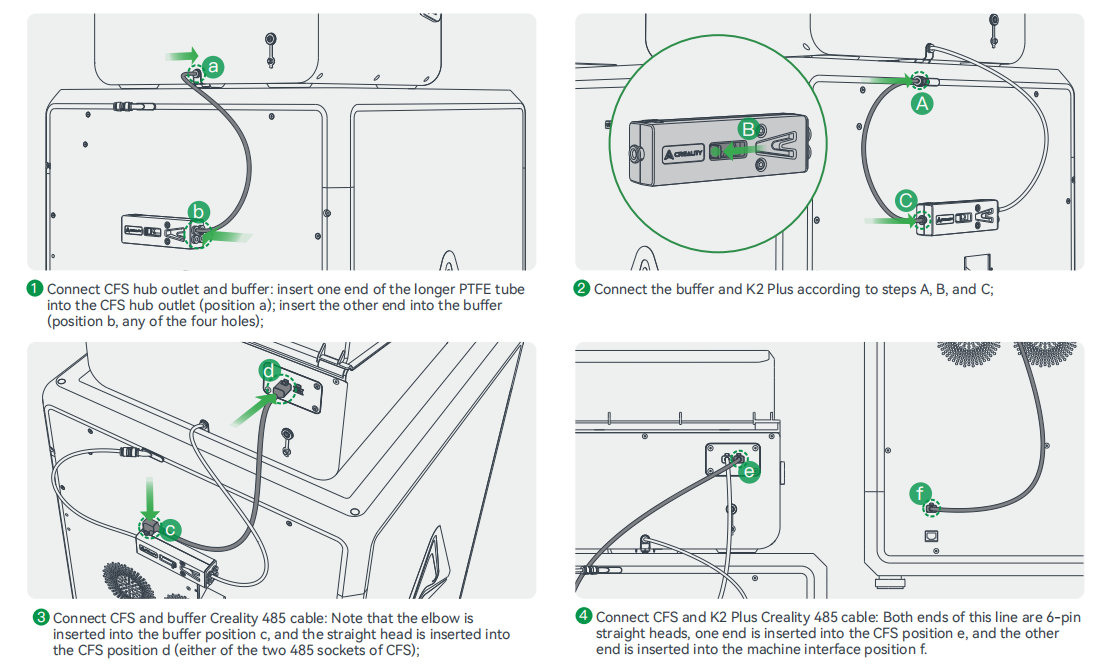
2.3.2 Connect the PTFE tube and 485 cable
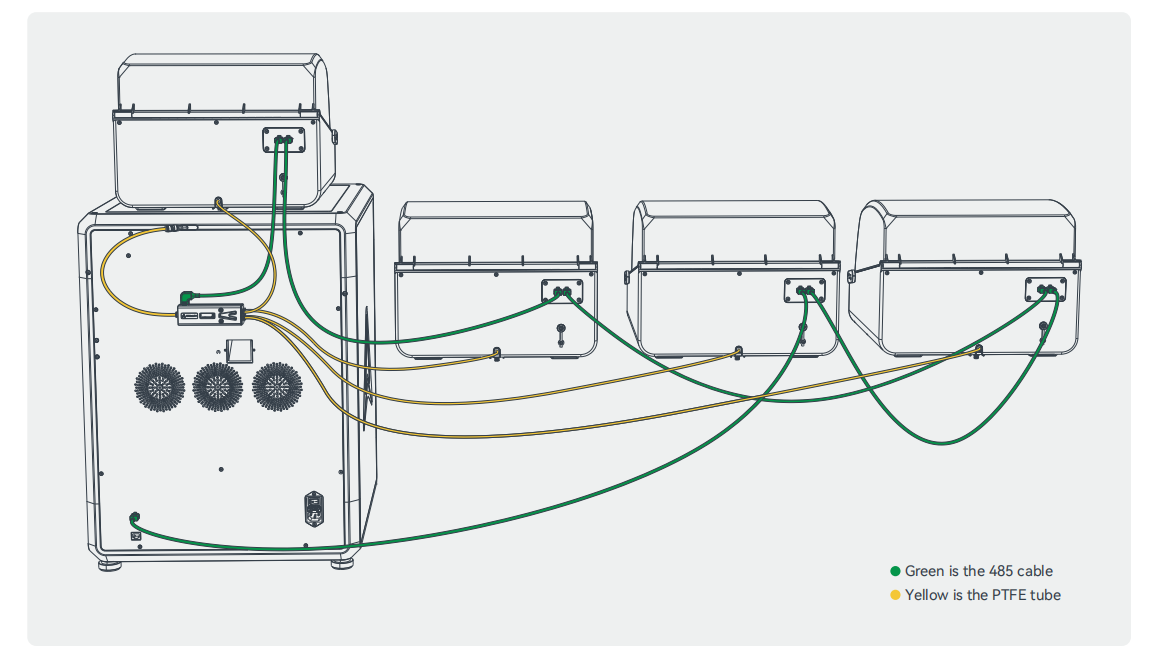
2.4 Connecting Multiple CFSs for Use
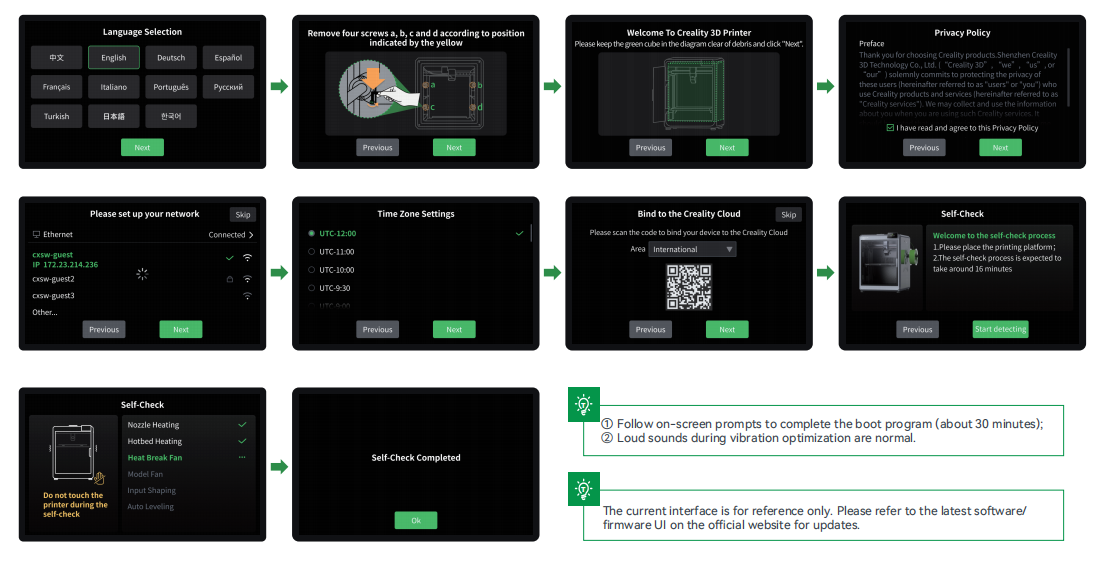
2.5 Power-on Guide
3. Product Usage
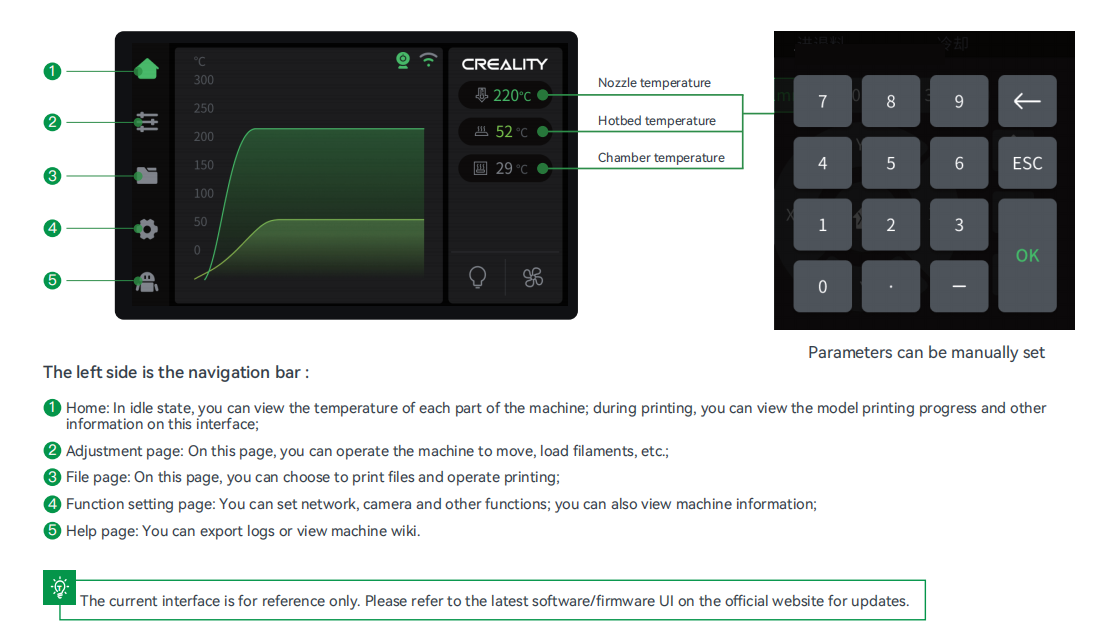
3.1 User Interface
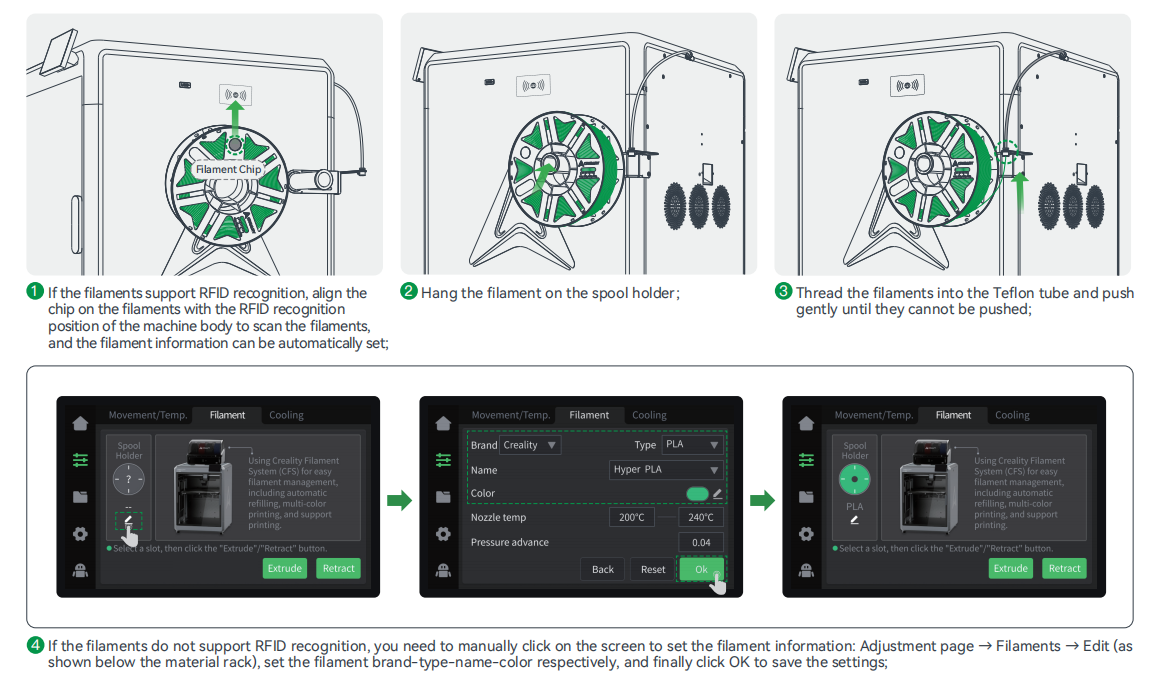
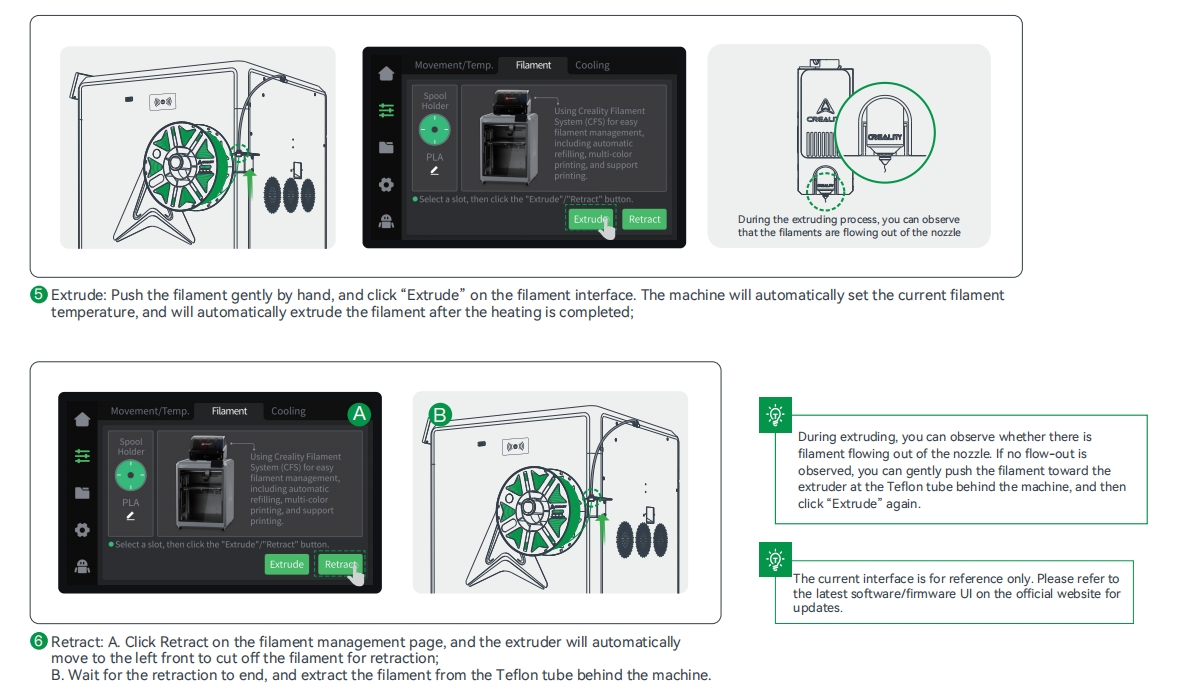
3.2 Loading Filament From Spool Holder
3.3 Loading Filament From CFS
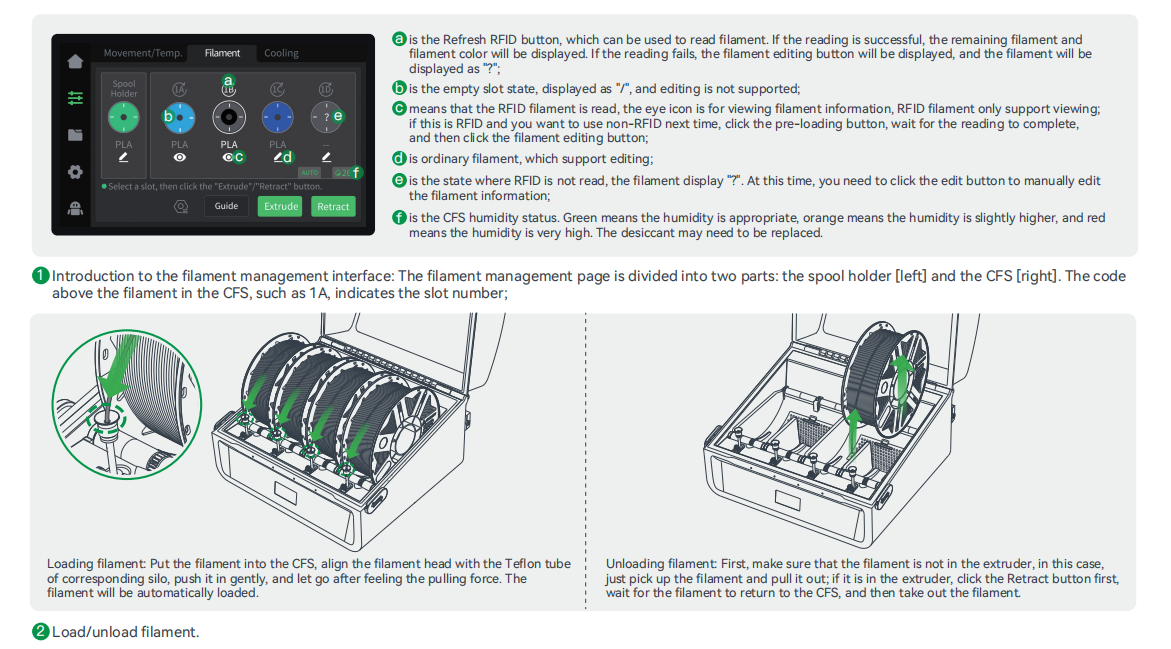
4. First Use
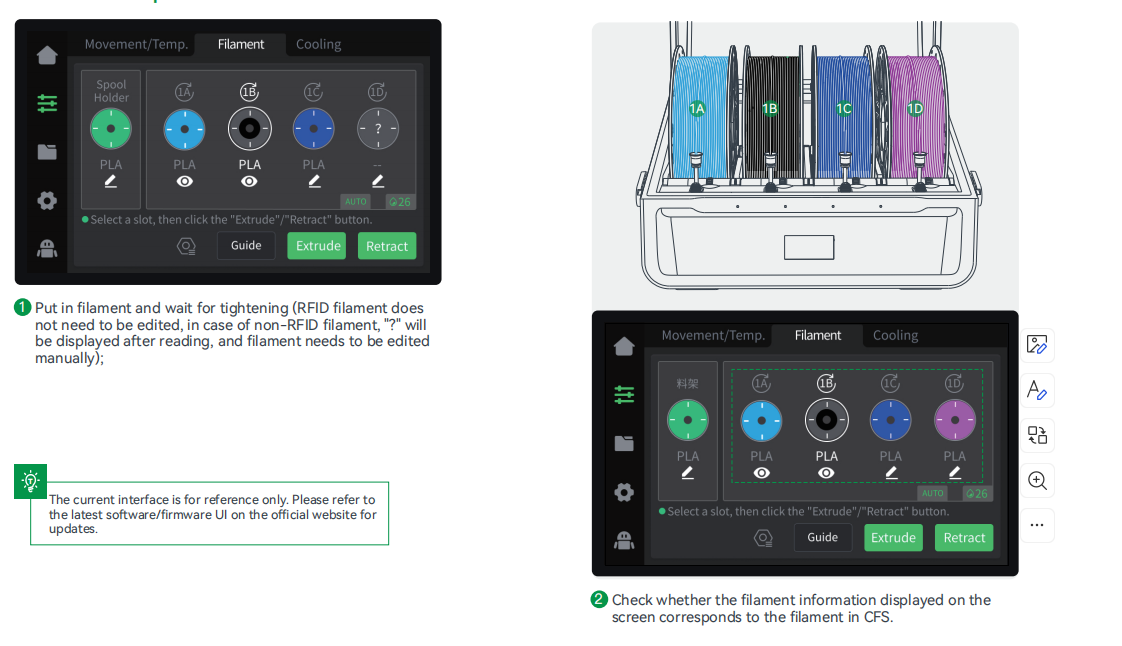
4.1 Filament Setup
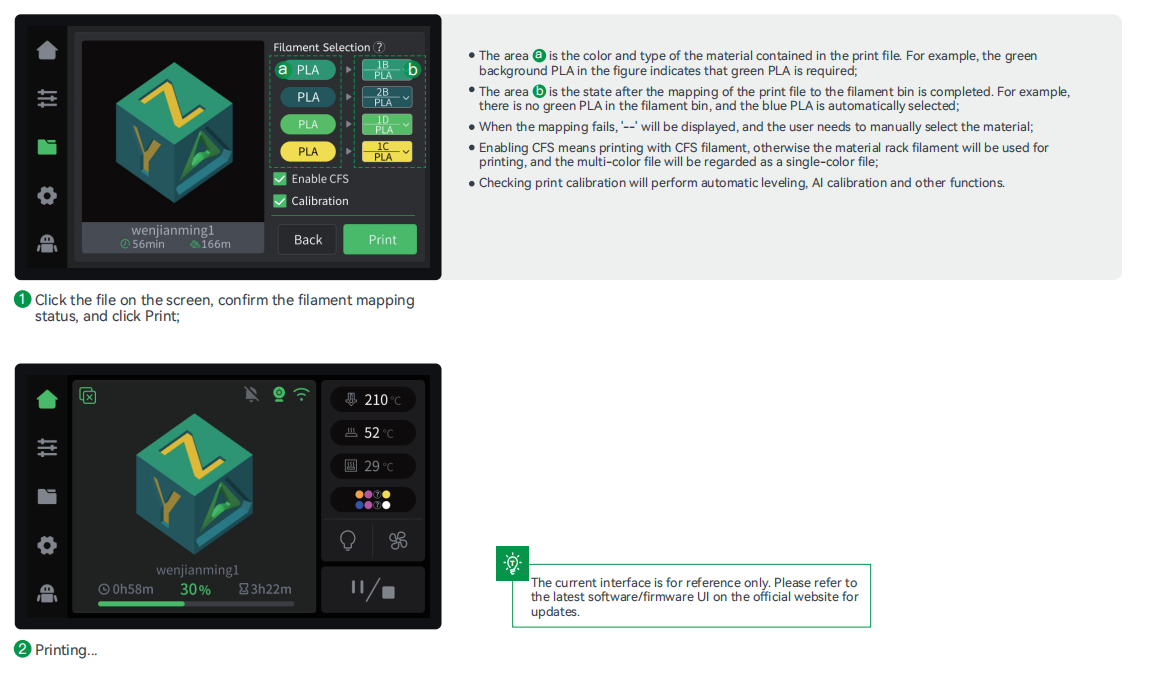
4.2 Print
4.3 Creality Print Slicing
4.3.1 Software Download and Installation
 Log in to the Creality Cloud website to download Creality Print 5.0 or above slicing :
https://www.crealitycloud.com/software-firmware/software/creality-print ;
4.3.2 Bind Machine to LAN
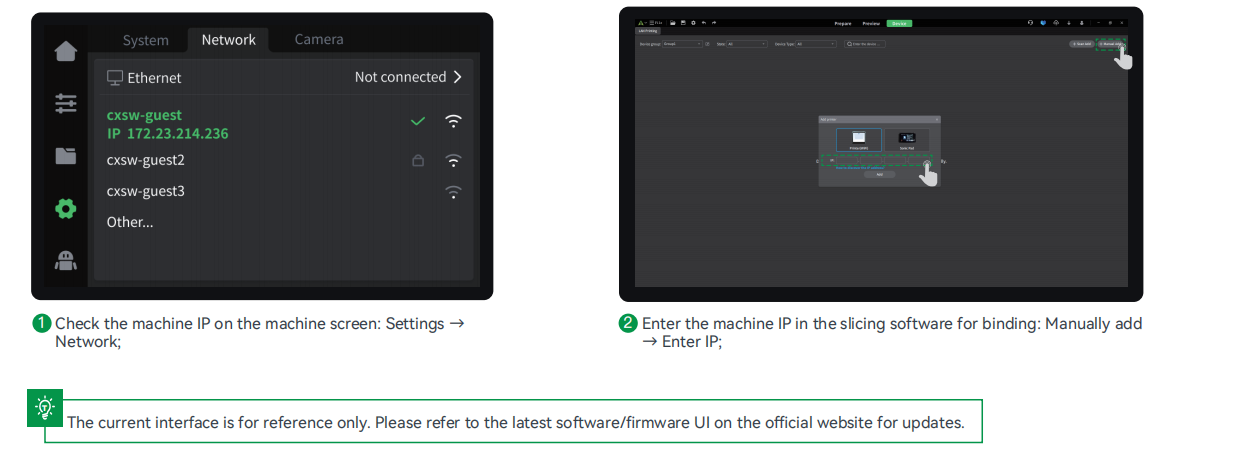
4.3.3 Slice and Send to Print
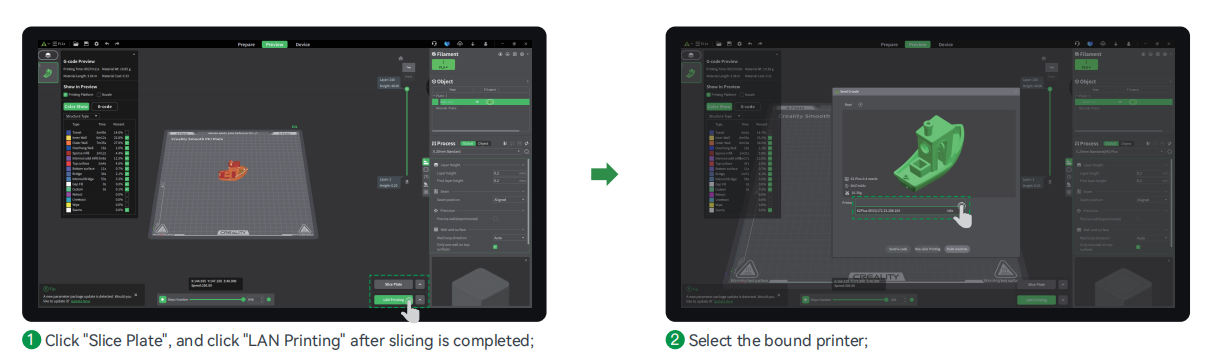
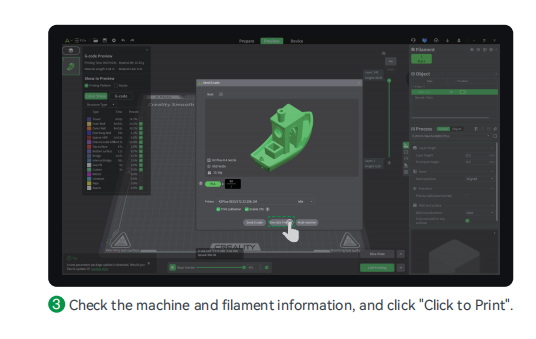 For more detailed slicing software usage tutorials, please log in to the Creality 3D official Wiki:
https://wiki.creality.com/en/software/update-released
The current interface is for reference only. Please refer to the latest software/firmware UI on the official website for updates.
FCC Warning
This device complies with part 15 of the FCC Rules. Operation is subject to the following two conditions:
(1) this device may not cause harmful interference, and (2) this device must accept any interference received, including interference that may cause undesired
operation.
Any changes or modifications not expressly approved by the party responsible for compliance could void the user's authority to operate the equipment.
NOTE: This equipment has been tested and found to comply with the limits for a Class B digital device, pursuant to Part 15 of the FCC Rules. These limits are designed to provide reasonable protection against harmful interference in a residential installation. This equipment generates, uses and can radiate radio frequency energy and, if not installed and used in accordance with the instructions, may cause harmful interference to radio communications.
However, there is no guarantee that interference will not occur in a particular installation.
If this equipment does cause harmful interference to radio or television reception,which can be determined by turning the equipment off and on, the user is encouraged to try to correct the interference by one or more of the following measures:
-- Reorient or relocate the receiving antenna.
-- Increase the separation between the equipment and receiver.
-- Connect the equipment into an outlet on a circuit differentfrom that to which the receiver is connected.
-- Consult the dealer or an experienced radio/TV technician for help.
To maintain compliance with FCC’s RF Exposure guidelines, This equipment should be installed and operated with minimum distance between 20cm the radiator your body: Use only the supplied antenna.
Cet article a-t-il été utile ?
C'est super !
Merci pour votre commentaire
Désolé ! Nous n'avons pas pu vous être utile
Merci pour votre commentaire
Commentaires envoyés
Nous apprécions vos efforts et nous allons corriger l'article